
Your Union's App.
Built for the Movement.
The original and still the best app for unions. Trusted, proven, and fairly priced. Before overspending on imitators, take us up on our free trial offer.
Start Your Free 60-Day Trial
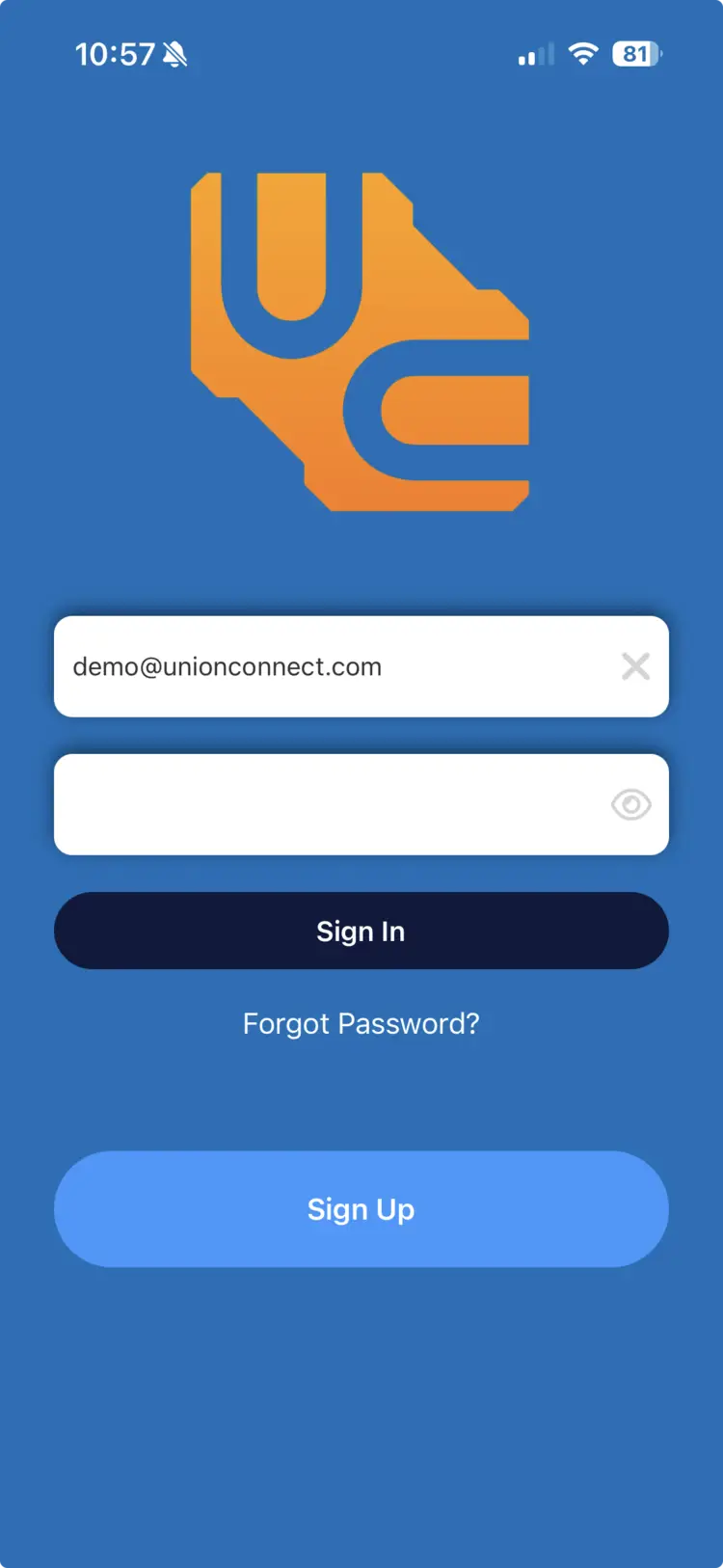
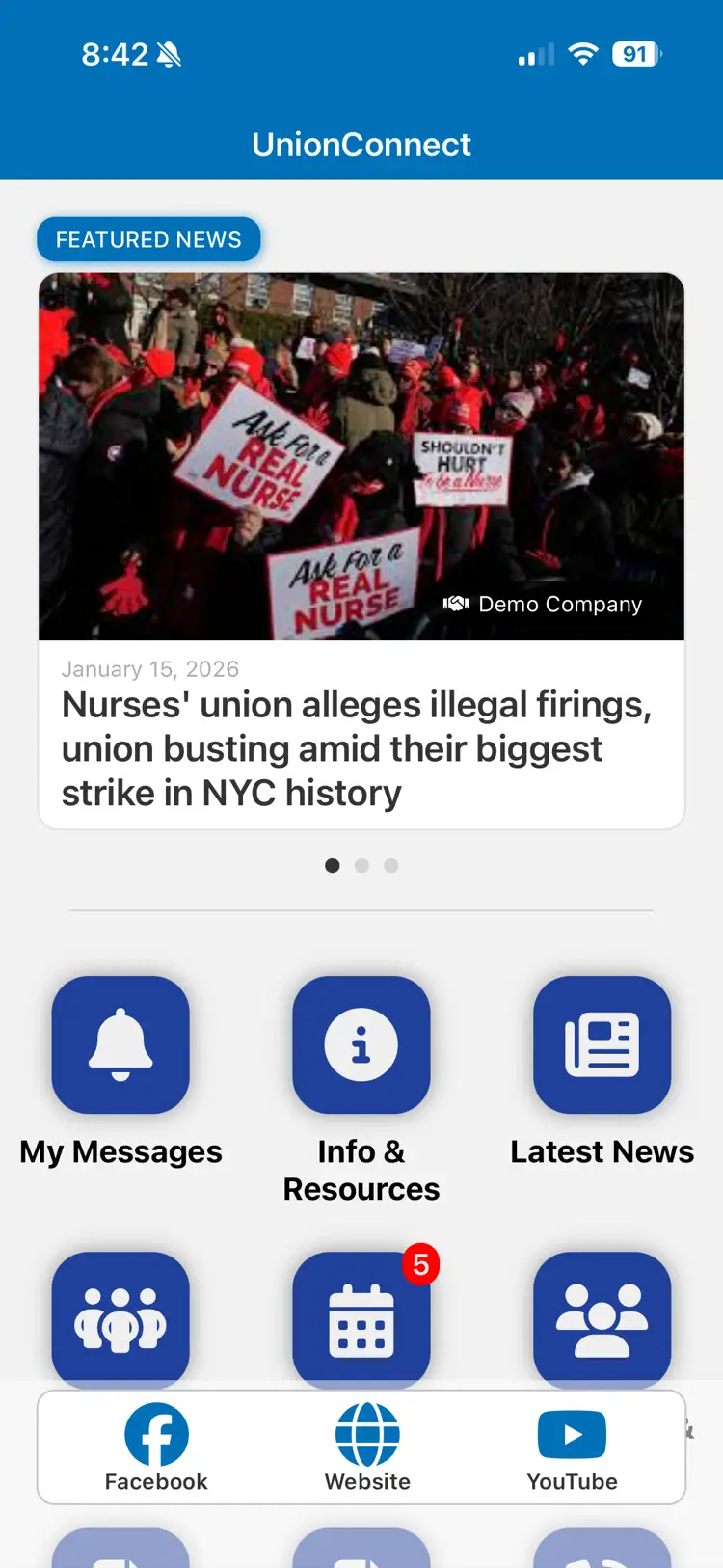
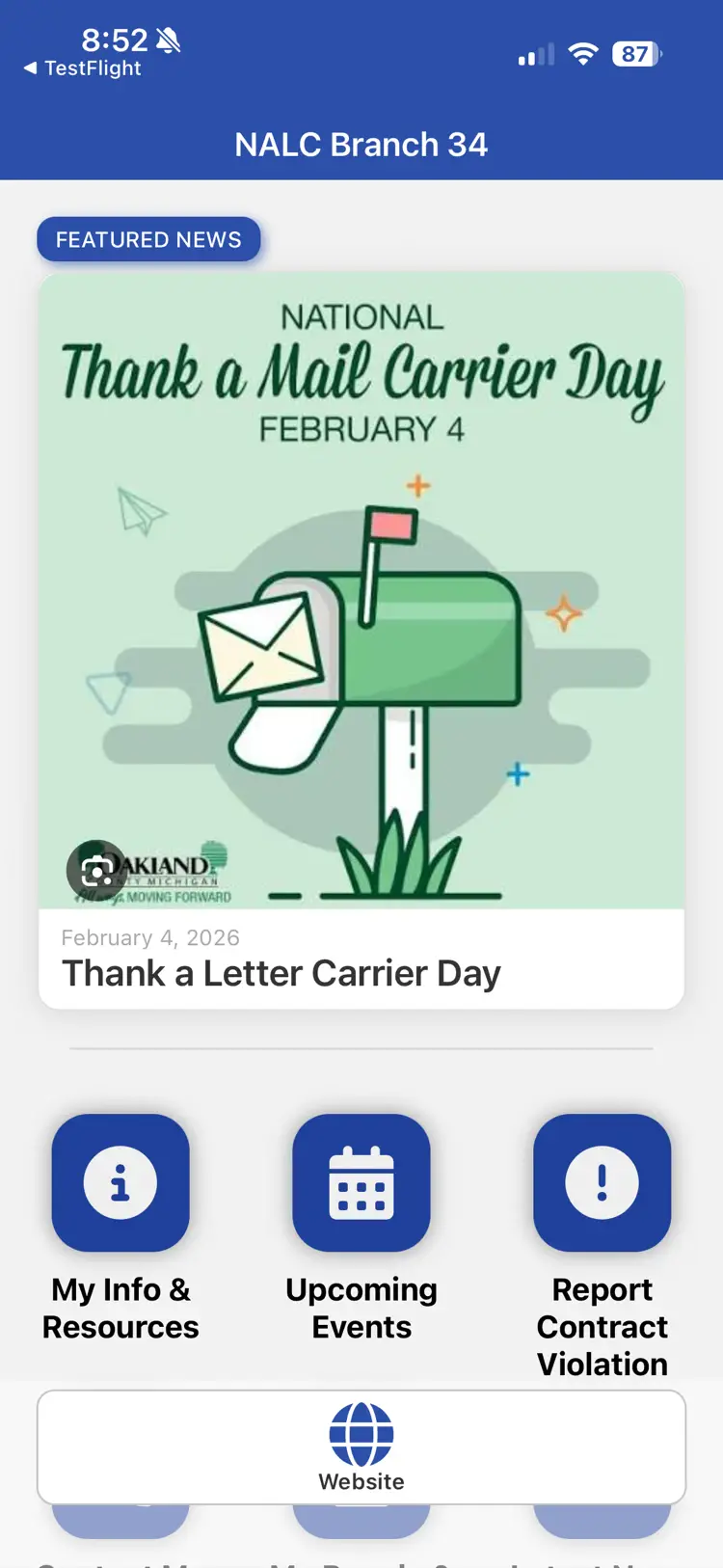
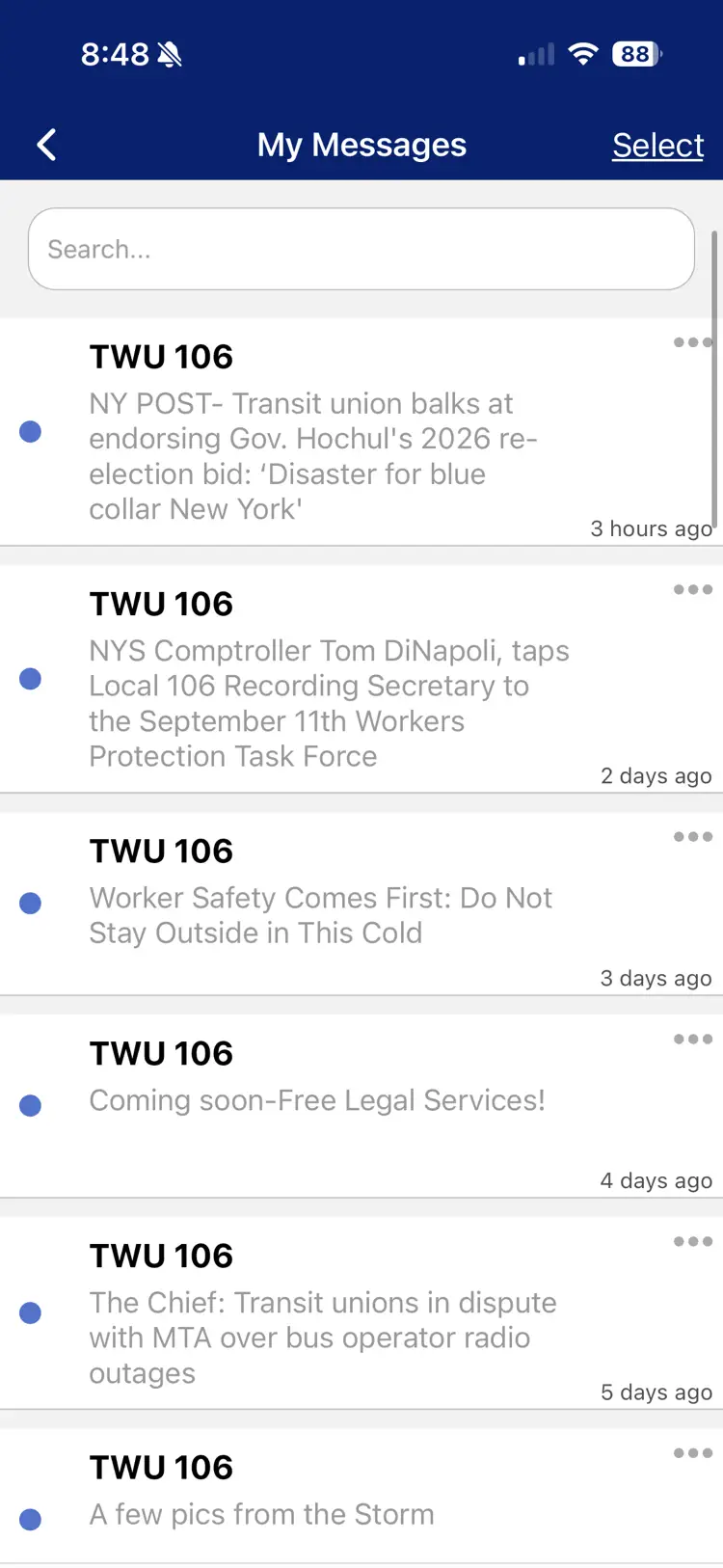
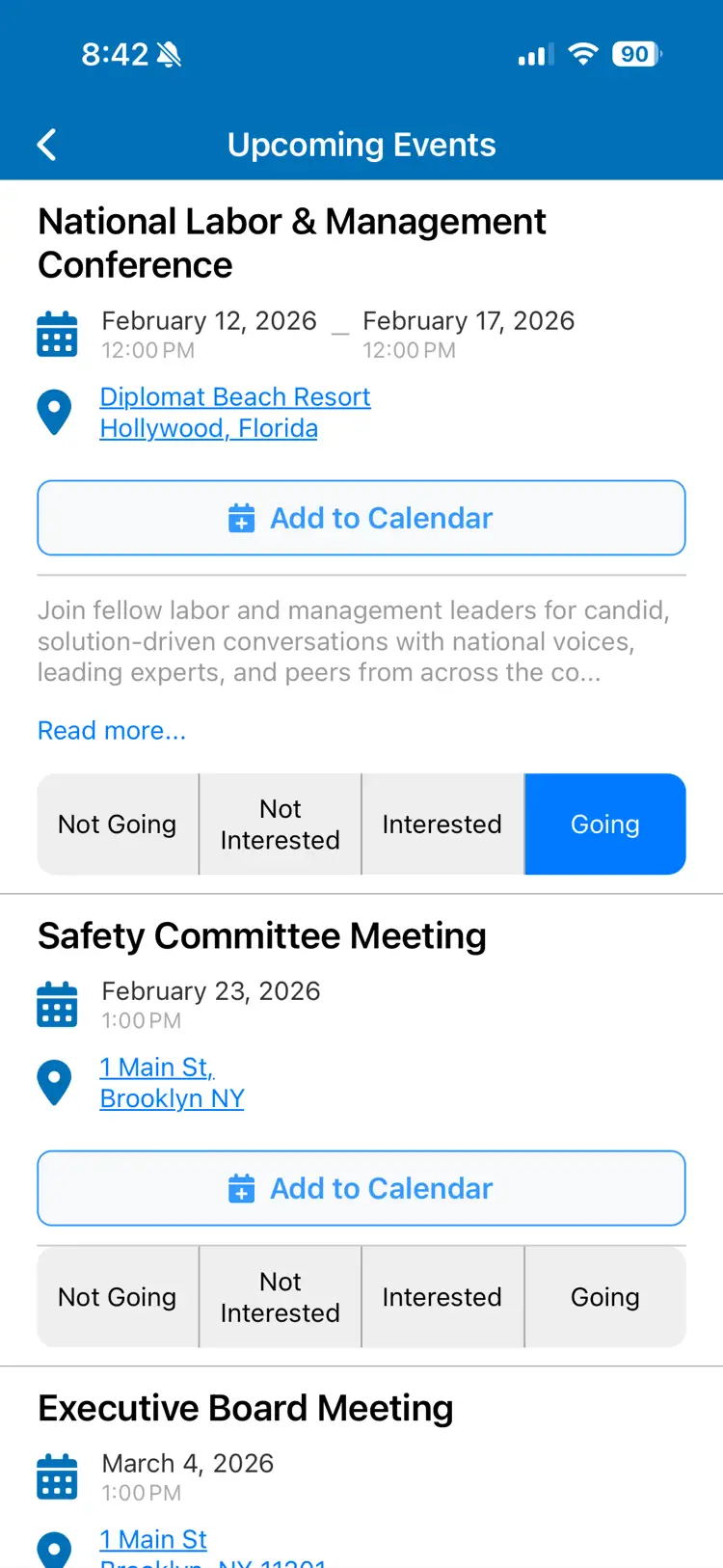
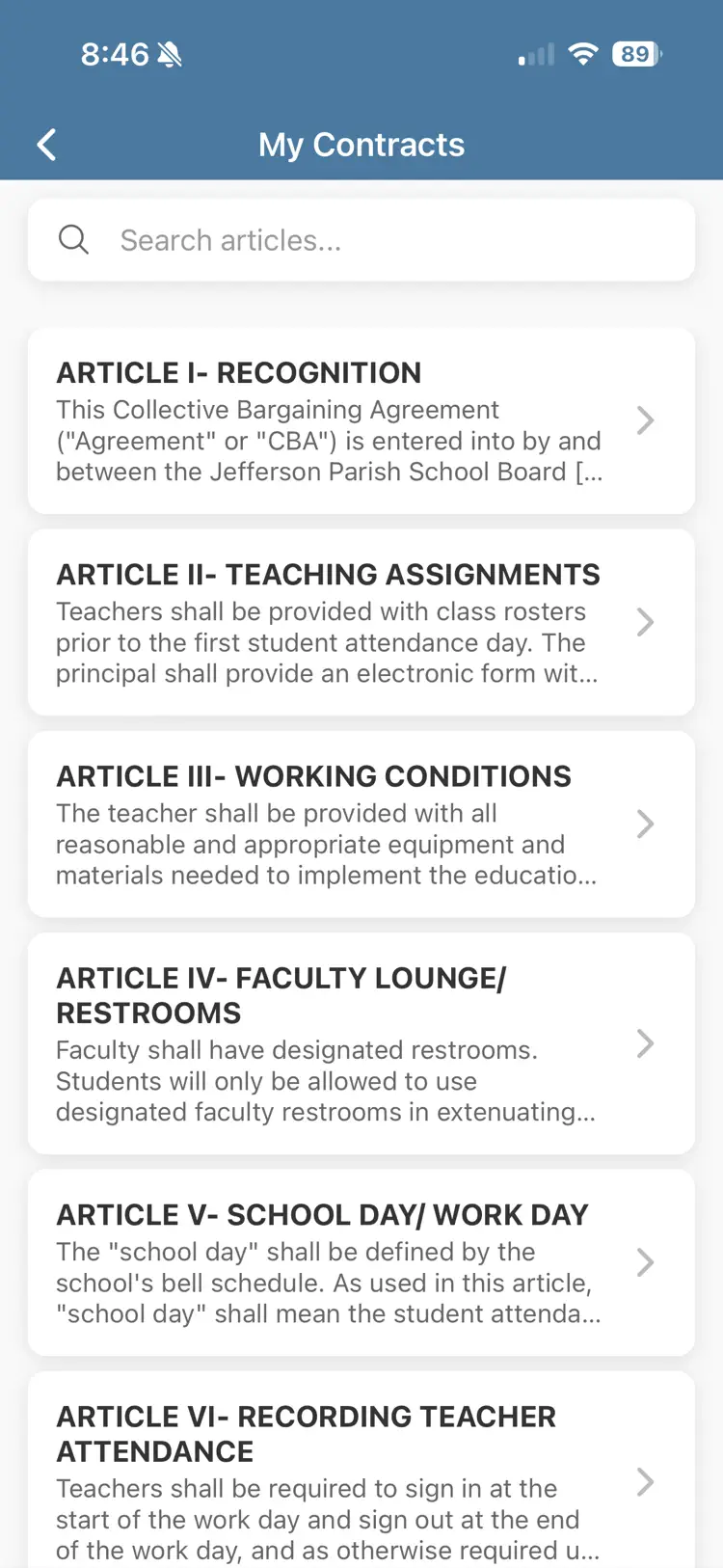
Trusted by unions across America and Canada

Up and Running in Three Steps
Talk to Us
Tell us about your local and the communication challenges you'd like to overcome. We will show you a demo and figure out exactly what you need.
Building, Customizing, Training
We build your branded app with your logo, colors, and train you on adding content. Need functionality that does not exist yet? We build it. This is not a cookie-cutter app.
Launch Day
Your app goes live in the App Store and Google Play. Members download it, you start communicating.
Built by Union Communication Tech Experts
UnionConnect is built by Prometheus Labor Communications, a team with over 25 years of experience building communication tools for labor organizations. No venture capital. No investors to answer to. Just a dedicated team that answers to the locals we serve.
We keep prices aggressively low because a 50-member local deserves the same technology as a 50,000-member international. Much more than a business model, it is the core of our philosophy.
Our Story and Team"To defy Power, which seems omnipotent."
Percy Bysshe Shelley, Prometheus Unbound
Ready to Connect Your Members?
Try UnionConnect free for 60 days. No credit card. No commitment. No strings. No high-pressure sales. Just a better way to reach your members.
Get Started Today